Appearance
Viewing Photos on the Map
The Map page plots your geotagged photos on an interactive world map, letting you explore your library by location.
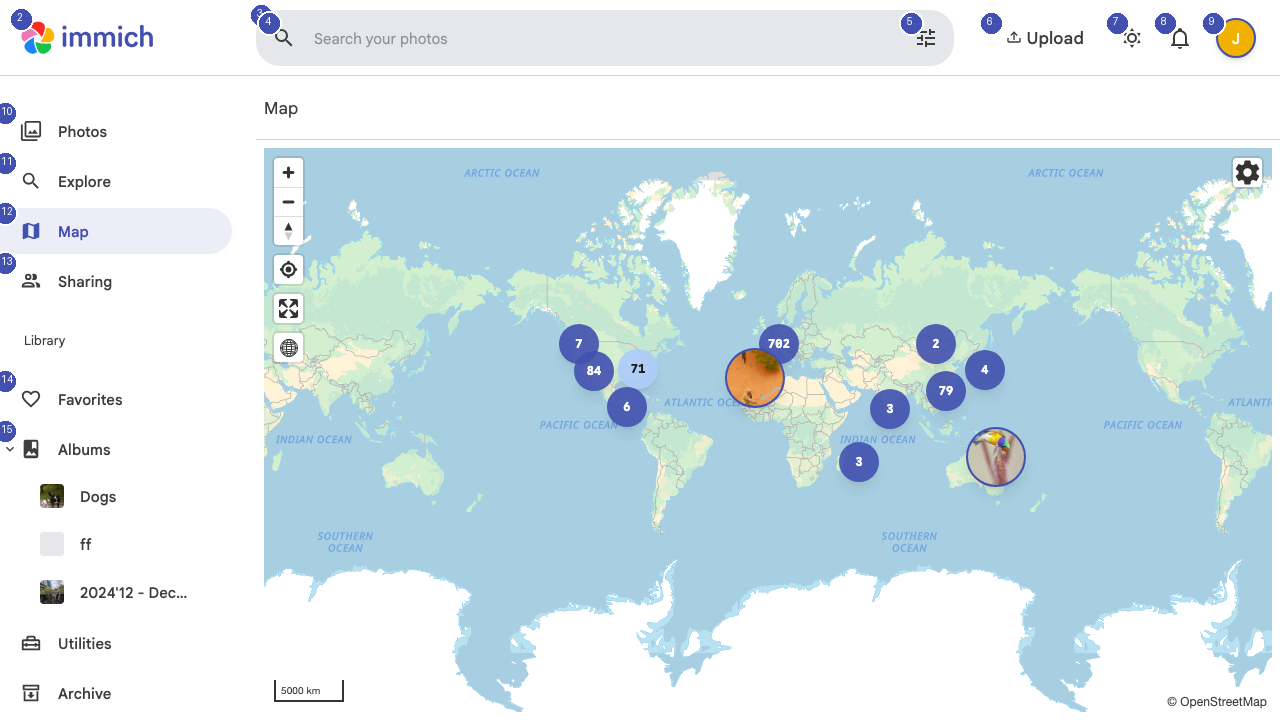
Using the Map
Photos with GPS metadata are displayed as markers on the map. Clusters of nearby photos are grouped together and show a count — zoom in to see individual photo locations. Click any marker or cluster to view the photos taken at that location.
Navigation
Use standard map controls to navigate:
- Scroll to zoom in and out
- Click and drag to pan across the map
- Double-click to zoom into a specific area
The map automatically centers on the area with the highest concentration of your photos.
Date Filtering
Use the date controls to filter which photos appear on the map. This is helpful when you want to see photos from a specific trip or time period without the clutter of your entire library.
Photo Preview
When you click a map marker, a preview panel shows thumbnails of photos taken at that location. Click any thumbnail to open the full photo viewer where you can see details, edit metadata, or add the photo to an album.
Requirements
Map functionality requires photos with embedded GPS coordinates. Photos taken with smartphones typically include this data automatically. If your camera does not record GPS data, you can add location information through the Utilities section.