Appearance
Managing People and Faces
The People page gives you control over Immich's facial recognition system, letting you name, merge, and organize the people detected in your photos.
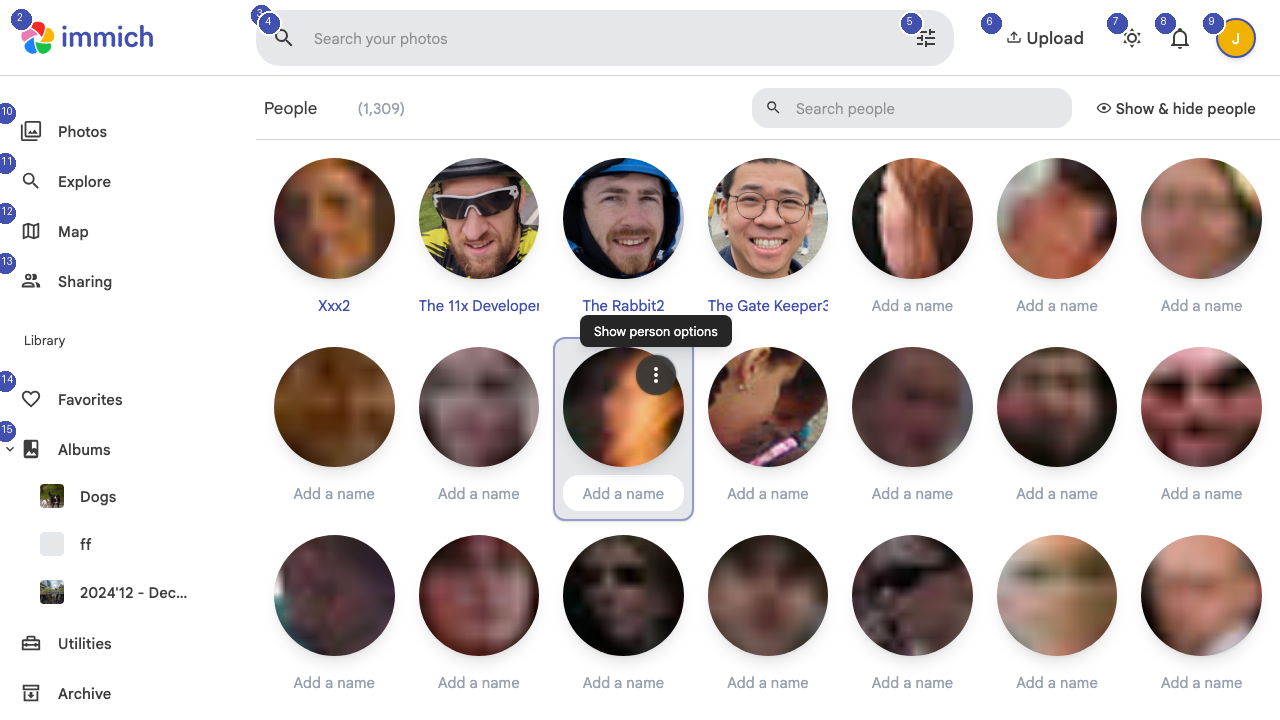
Viewing Recognized People
The People page displays all individuals that Immich has detected across your photo library. Each person appears as a card with their face thumbnail and name (if assigned). The cards are sorted by the number of photos containing that person.
Naming People
When Immich first detects a face, it creates an unnamed person entry. To assign a name:
- Click on the person's card to open their profile
- Click the name field at the top
- Type the person's name and press Enter
Once named, you can search for that person by name in the global search bar.
Merging Duplicate People
Immich may sometimes create separate entries for the same person (for example, from different angles or lighting conditions). To merge duplicates:
- Select the duplicate entries
- Use the merge option to combine them into a single person
- Choose which face thumbnail to use as the primary photo
Hiding People
If Immich detects faces you do not want to track (for example, strangers in the background), you can hide them from the People page. Hidden faces will not appear in Explore or People views but will remain in the original photos.
Face Recognition Settings
Adjust face recognition sensitivity and behavior in your account settings. Higher sensitivity detects more faces but may create more duplicate entries.